
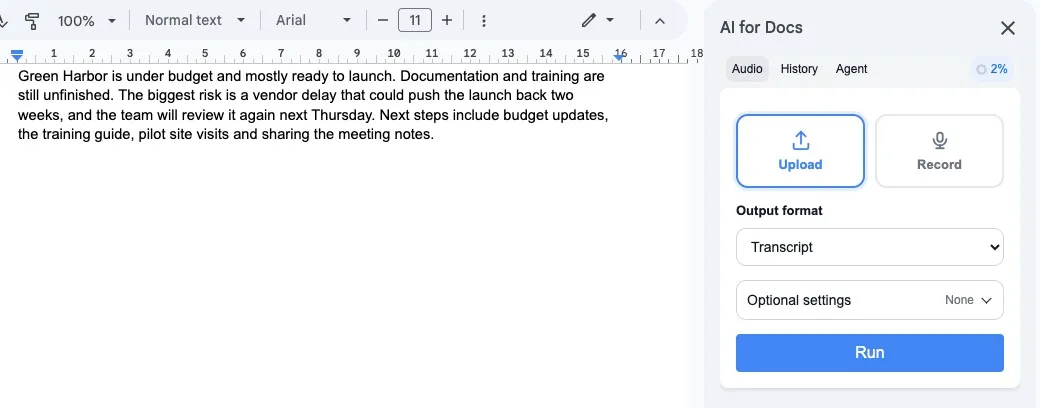
Google Docs Voice Typing uses your microphone for live speech. Google's official Voice Typing workflow does not provide a control for uploading an existing MP3, WAV, M4A, or video file.
If you already have a recording, use an Audio to Text add-on inside Google Docs. SimpleMetrics, the maker of AI for Docs, lets you upload the file, create a transcript, meeting minutes, or SRT subtitles, and insert the editable result into your document.
Quick answer
- Live speech: Use Google Docs Voice Typing.
- An existing audio or video file: Upload it with AI for Docs.
- A meeting recording: Choose Meeting minutes.
- Video captions: Choose SRT subtitles.
Can Google Docs transcribe an uploaded audio file?
Not with the built-in Voice Typing workflow.
Google Docs Voice Typing listens through your microphone. It works for live dictation, but its official workflow does not include an audio-file upload control.
You can play a recording through speakers while Voice Typing listens, but this runs in real time and background noise can affect the result. Direct file upload is usually simpler for an existing recording.
How to upload and transcribe a recording
- Install SimpleMetrics AI for Docs.
- Open the Google Doc where you want the result.
- Go to Extensions, open AI for Docs, then choose Use Audio to Text.
- Upload the audio or video file.
- Choose Transcript, Meeting minutes, or SRT subtitles.
- Click Generate & Insert into Doc.
The result appears as editable text in your document. Review names, dates, numbers, and specialist terms before sharing it.
Which output should I choose?
Transcript
Choose Transcript when you need the spoken content in order. You can add speaker labels or timestamps when reviewing interviews, lectures, podcasts, or customer calls.
Meeting minutes
Choose Meeting minutes when you need a shorter document with the main discussion, decisions, action items, and notes.
SRT subtitles
Choose SRT subtitles when you need timestamped captions for a video editor, YouTube upload, course, webinar, or social clip.
Which files can I upload?
Common audio and video formats are supported, including MP3, M4A, WAV, AAC, OGG, FLAC, MP4, MOV, and WEBM.
See the Audio to Text help page for current supported formats, credits, timestamps, speaker labels, and upload guidance.
Can I use Google Docs Voice Typing instead?
Yes, if the speech is live or the recording is short.
Open Tools > Voice typing, select the language, click the microphone, and play the recording where your microphone can hear it.
This workaround must run in real time and may pick up room noise. It also does not automatically create meeting minutes, speaker labels, timestamps, or SRT subtitles.
Tips for a better result
- Use the original recording instead of replaying it through speakers.
- Avoid loud music and background noise.
- Turn on speaker labels when several people are talking.
- Add timestamps when you need to review specific moments.
- Check names, dates, numbers, and technical terms.
Bottom line
Google Docs Voice Typing is useful for live speech, but its official workflow does not include direct upload for a pre-recorded audio file.
For an existing MP3, WAV, M4A, MP4, or other recording, use AI for Docs to upload it and insert a transcript, meeting minutes, or SRT subtitles into the document.
Transcribe your recording inside Google Docs
Install AI for Docs, upload an audio or video file, and insert editable text into your current document.
Frequently Asked Questions
Can Google Docs transcribe an MP3 file?
Not through a direct file upload in the built-in Voice Typing workflow. Use an Audio to Text add-on that accepts MP3 uploads, or play the file through a microphone as a real-time workaround.
Can I transcribe a video into Google Docs?
Yes. Upload a supported video file to AI for Docs, then choose Transcript, Meeting minutes, or SRT subtitles.
Can Google Docs create meeting minutes from a recording?
Native Voice Typing produces dictated text. AI for Docs can turn an uploaded meeting recording into a summary, decisions, action items, and notes.
Can I add speaker labels and timestamps?
Yes. Enable speaker labels or timestamps before generating a transcript.
Sources
- Google Docs Editors Help, Type and edit with your voice: support.google.com/docs/answer/4492226
- Google News Initiative, Voice Typing: newsinitiative.withgoogle.com
- SimpleMetrics AI for Docs: simplemetrics.xyz/docs/
- SimpleMetrics Audio to Text help: simplemetrics.xyz/help/docs/audio-to-text/