
This tutorial will show you how to make your images in Google Drive accessible to “Anyone with the link.” This is useful when you want to share files publicly or use them in applications that require a publicly accessible URL, like the example in the video with analyzing images in Google Sheets using AI.
Step 1: Upload Images to Google Drive
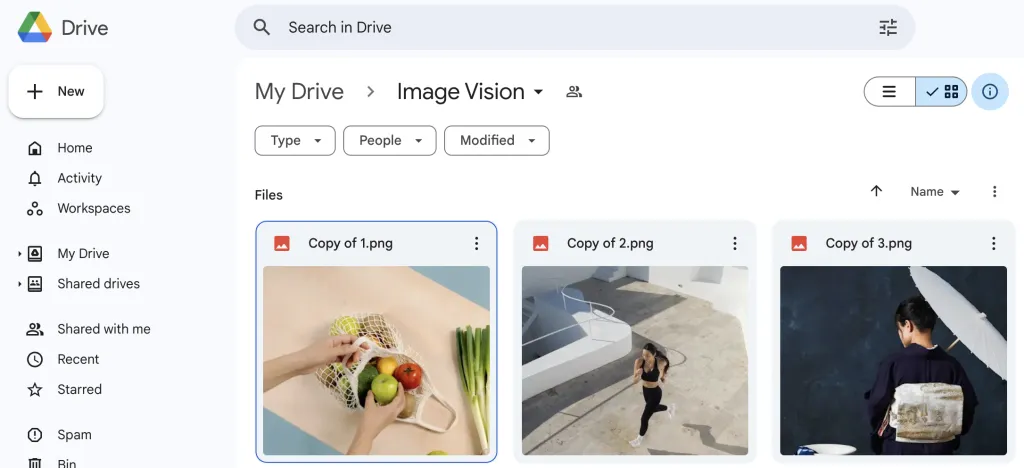
- Open Google Drive (drive.google.com).
- Click the “+ New” button.
- Select “File upload” or “Folder upload” depending on what you want to upload.
- Choose the files or folder from your computer and upload them to your Drive.
Step 2: Change Sharing Settings
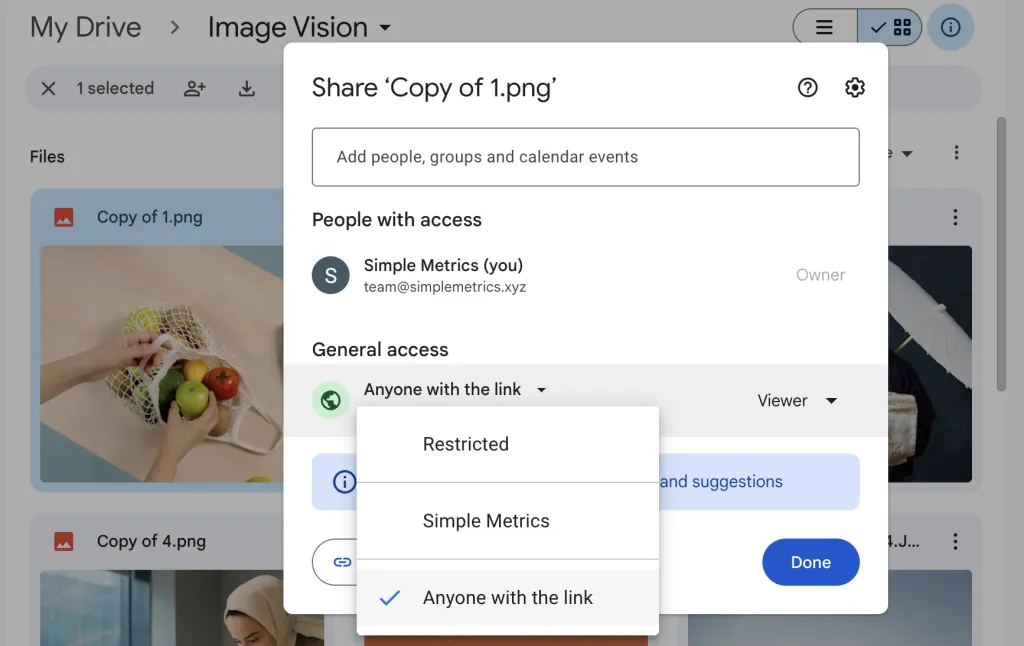
- Select all the files using Ctrl + A
- Right Click and then click Share.
- Change the General access to Anyone with the link.
- Click Copy Links.
Done! Click the link below to see a working example:
https://drive.google.com/file/d/1TY11t3YHHZYtDhiLZUG5-BKAI7OfT3iN/view?usp=drive_link
Alternatively, use our Upload/Download Files for getting file URLs to be used with VISION and PDF formulas.
YouTube Tutorial: First 26 Seconds
If you prefer video, below is a video demonstration to show you how to make your files accessible.