
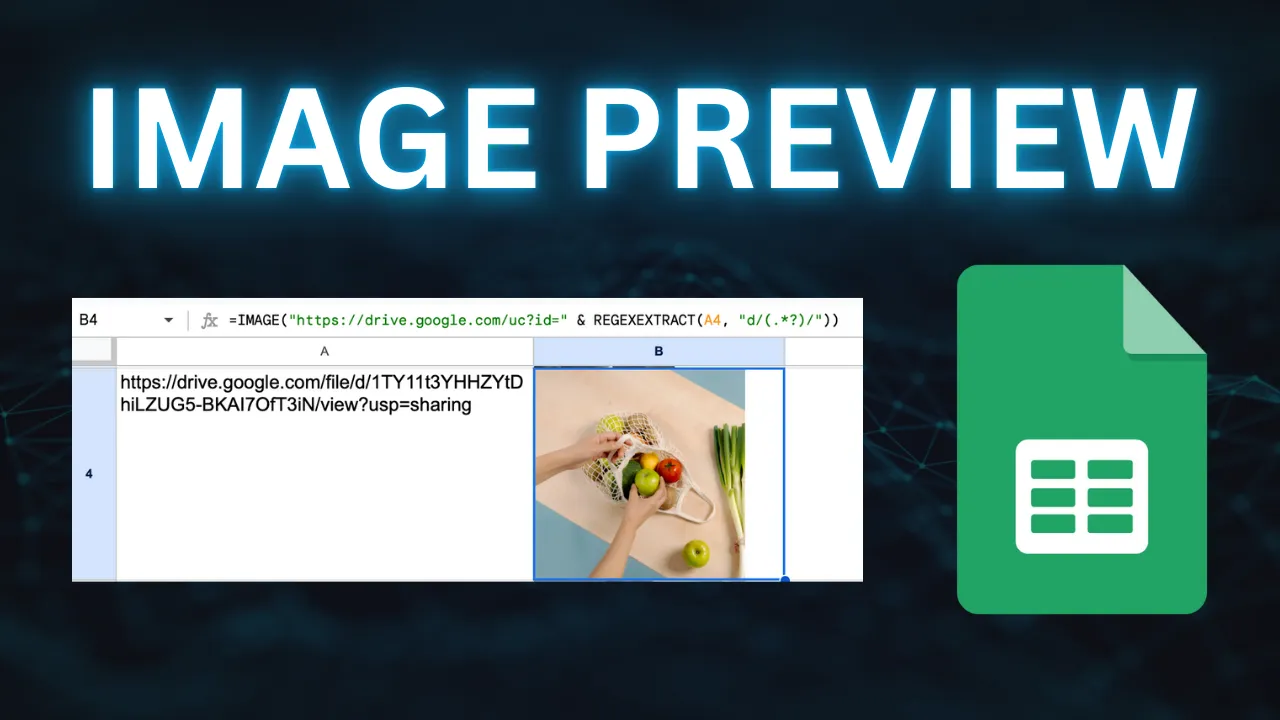
If your sheet contains Google Drive file links, using =IMAGE(A2) often fails.
The fix is to extract the Drive file ID and rebuild a direct URL that Google Sheets can render.
Why =IMAGE() Fails with Standard Drive Links
=IMAGE("https://drive.google.com/file/d/FILE_ID/view")
This /file/d/.../view link is a Drive viewer page, not a direct image endpoint.
Use a direct format such as uc?export=view&id= (or uc?export=download&id=) instead.
Formula to Preview Drive Images in Google Sheets
Put the Drive URL in A2, then use:
=IMAGE("https://drive.google.com/uc?export=view&id=" & REGEXEXTRACT(A2,"[-\w]{25,}"))
This regex-based approach is more resilient than matching only d/(...)/, because Drive links can come in different formats.
Troubleshooting
- Image does not load: Set Drive sharing to Anyone with the link. See Make Drive images accessible.
- Still blocked by permissions: Use Upload/Download Files to generate accessible URLs.
- Regex error: Make sure A2 contains a full Drive URL with a valid file ID.
FAQ
Q: Does this work for PDF or video files?
A: This article is for image preview via =IMAGE(). For other file types, use the relevant workflow/tool.
Q: Can I keep using shortened or partial links?
A: It is safer to use the full Drive link so the file ID can be extracted reliably.
Q: Why does Google’s docs say Drive URLs are unsupported?
A: Raw drive.google.com/file/d/.../view URLs are not direct image links. The workaround is converting to a direct uc endpoint format.