
The Upload/Download Files menu lets you upload images or PDFs and turn them into file URLs that work with AI for Sheets formulas. Those URLs can be used with =VISION, =PDF, or =EDIT.
What’s new
- Upload images or PDFs from the Upload/Download Files sidebar.
- Get clean file URLs written into a dedicated sheet with file names and URLs.
- Use the URLs with
=VISION,=PDF, and=EDIT. - Download all AI generated images in your sheet as a ZIP.
- Keep your workflow inside Google Sheets.
How it works
Step 1: Open Upload/Download Files
In Google Sheets select Extensions → AI for Sheets → Upload/Download Files.
Step 2: Choose files
Pick the images or PDFs you want to analyze. You can select multiple files.
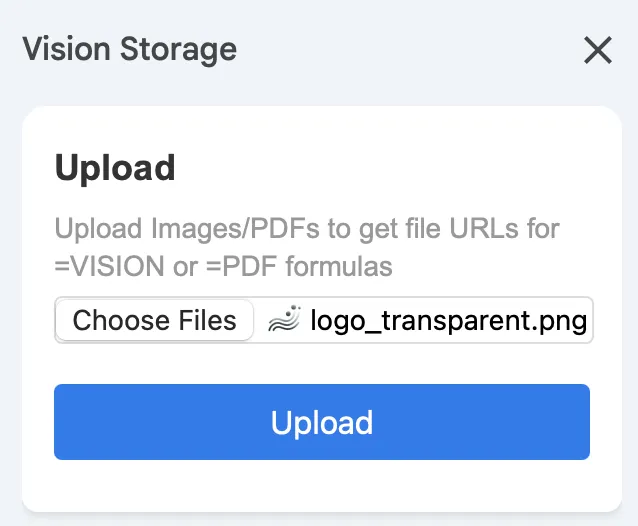
Step 3: Copy file URLs
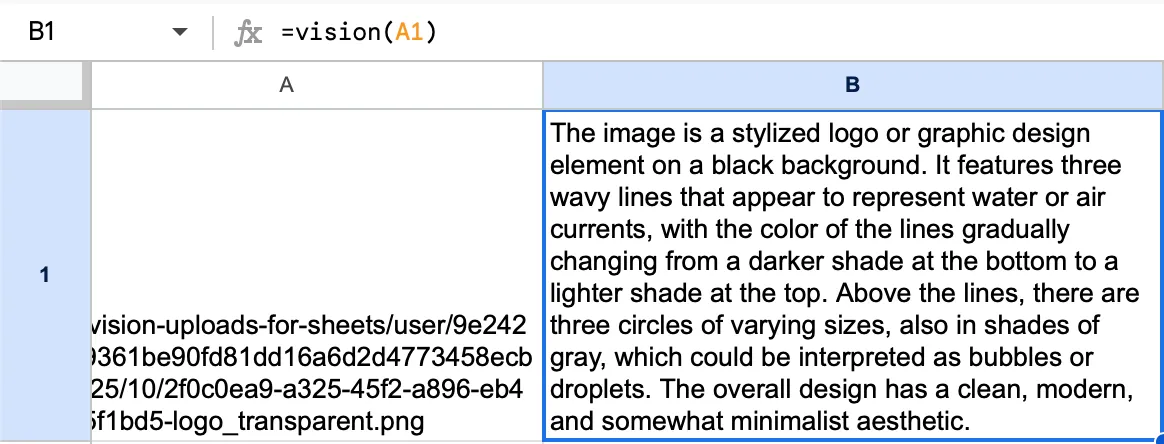
After upload the add-on writes file names and URLs into a sheet called SimpleMetrics_Uploaded_Files. A good pattern is to keep URLs in one column and use them with formulas like =VISION, =PDF, or =EDIT in the next column.
Step 4: Run the formula
Use the URL with =VISION for images or =PDF for documents. Examples:
=VISION("Describe this image", A2)
=VISION("Extract text from the image", A2)
=PDF("Summarize this document", A2)
Tip: for images use the Google Sheets =IMAGE(A2) function in a helper column to preview the uploaded image.
Frequently Asked Questions
Which formulas work with these URLs?
Start with =VISION for images, =PDF for documents, and =EDIT for image edits.
What file types can I upload?
Common formats like JPG, PNG, GIF, WEBP, and PDF work well.
Why does my formula return an error?
Check that the URL cell is not empty, remove extra spaces, and try a smaller file if the upload was very large.
Can I remove uploaded images?
Files uploaded through Upload/Download Files are automatically deleted after 7 days. You can remove the URLs from your sheet at any time.