
1) Sheet ownership mismatch
Problem: AI formulas use the plan of the sheet's owner. If someone else owns the sheet, formulas there use their plan, not yours, even with edit access.
Solution: Click File > Make a copy to create a copy under your subscribed account, then click Refresh in the Upgrade Account sidebar.
2) Multiple Google accounts logged in
Problem: Being signed into multiple Google accounts can confuse the add-on, causing it to not recognize your subscription.
Solution:
- Sign out of all Google accounts.
- Sign back in using only the email you used for your subscription.
- Click Refresh in the Upgrade Account sidebar.
3) Organization admin restrictions
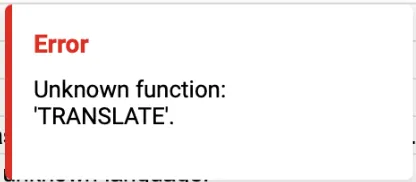
Problem: If your Google Workspace Admin has disabled Marketplace add-ons, AI for Sheets formulas may show errors like Unknown function.
Solution:
- Ask your Google Workspace administrator to approve AI for Sheets for your account. If you are the admin, allowlist this specific app or install it for the relevant users. You do not need to allow all Marketplace apps. Open Google Admin Console – Manage Marketplace Apps , or follow Google's app allowlist instructions.
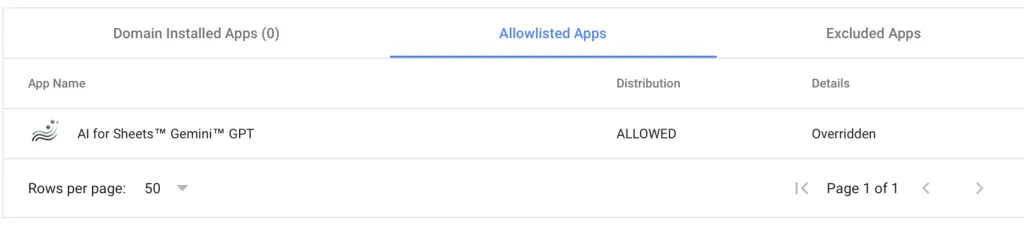
- Use your organization's approved account and access process. For subscription-account questions, email support@simplemetrics.xyz.
Still stuck?
Email support@simplemetrics.xyz and include a screenshot of the error plus the email you used to subscribe.