
Step 1: Upload images to Google Drive
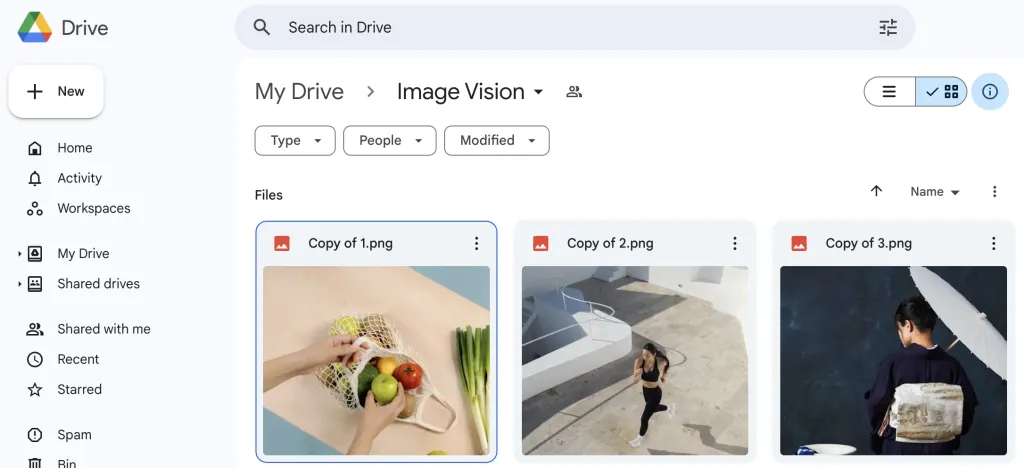
- Open Google Drive (
drive.google.com). - Click + New.
- Select File upload (or Folder upload).
- Choose the files or folder and upload.
Step 2: Change sharing settings
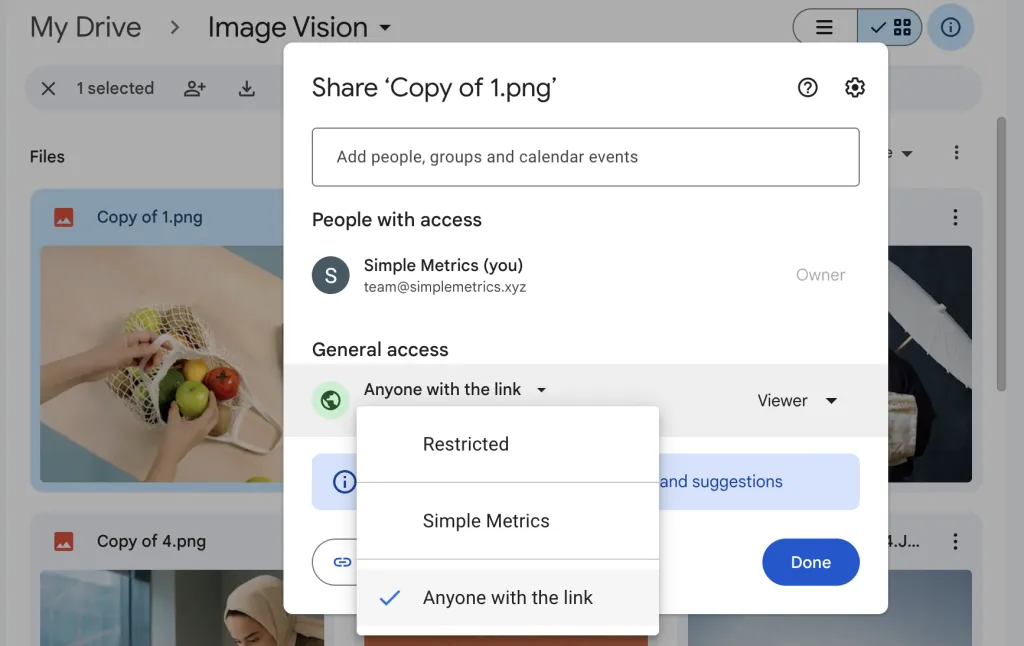
- Select the files you want to use.
- Right-click and click Share.
- Change General access to Anyone with the link.
- Click Copy link.
Done. Here is a working example link:
https://drive.google.com/file/d/1TY11t3YHHZYtDhiLZUG5-BKAI7OfT3iN/view?usp=drive_link
Prefer not to change Drive sharing settings? Use Upload/Download Files to generate URLs that work with =VISION and =PDF.
YouTube tutorial (first 26 seconds)
If you prefer video, this clip shows the sharing setting to use.